connect NV9 bill acceptor to your pc

This is a quick note for those using the NV9 bill acceptor. As we mentioned in an earlier post, our PRT232 or IOCTL counters can give your PC the ability to record the cash value of bills inserted into a bill validator. Recall that the IOCTL232 is the same as the PRT232 but without an enclosure and at a lower cost. With the NV9 bill validator specifically, pins 1 & 16 on the main interface connector are used for the connection to the PRT232 “sensor” connector. Pin 16 is ground and pin 1 is the open-collector pulse output.

The pulses are delivered at a rate of about 10 per second, which is well within the counting speed we support. The dollar values are sent as 1 pulse per dollar, e.g., a $1 bill produces one pulse, a $50 produces 50 pulses and so on.


If you'd like to subscribe to this blog, please click here.
High speed counter and Encoder reader

We are getting ready to release a new high speed counter that greatly simplifies machine to PC connections. 

Feature set:

  • Read quadrature encoder pulses at up to a 20MHz rate.
  • Single-ended or differential pulse inputs.
  • USB data output provides count to USB or encoder to USB output.
  • USB connection for configuration.

The device implements USB counter that is significantly faster than our existing ones and it is still compatible with the existing software interface.
This counter has a maximum input pulse rate of 20MHz and will accept either a “standard” or Gray-code mode used for interfacing with quadrature encoders. You can now get a high speed quadrature encoder input read from your PC’s USB port. This new high speed interface is available in a choice of DIN-rail mount or standard wall/desktop mounting enclosure.

Click the link below to be notified when the interface is available for the introductory $125 pricing. This price is only available for pre-orders.


If you'd like to subscribe to this blog, please click here.
Arduino flickering LED

I wrote this a long time ago for someone who disappeared. Hope it’s useful to you.

int ledPin1 = 9;
int ledPin2 = 10;
int ledPin3 = 11;

#define THRESHOLD 90
#define FLICKER 250
#define OFFSET 5;
#define DLY 100

int _levels[] = {0,0,15,10,15,20,25,30,50,75,100,500,700,1000};

void setup()
{
}

void loop() 
{
    int len = sizeof(_levels)/sizeof(int);
    int level1 = _levels[random(len-1)];
    
    analogWrite(ledPin1, level1);
    if (level1 > THRESHOLD)
    {
 //      analogWrite(ledPin2, random(FLICKER));
    }
    else
    {
  //      analogWrite(ledPin2, 5);
    }
    
    //analogWrite(ledPin3, random(FLICKER)+OFFSET);
    delay(random(DLY));
}


If you'd like to subscribe to this blog, please click here.
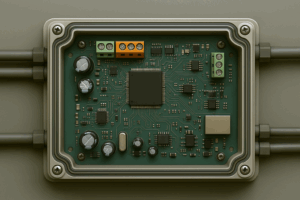
Sensor for detecting thin lines

A few months ago I was asked to build a custom counter. I get that request fairly often, but this one was different. The thing that needed to be counted was the transition of a thin line past the sensor. The feature to be counted was about 0.5mm thick. It was a black line on a yellow background so at least the contrast was pretty good. Since the counter needed to be portable and could not be attached to the equipment containing the feature to be counted, we figured that a way to visually align the sensor to the line was best. This meant that the sensor would emit visible light, so it would be possible to see when the light was in the right spot.

Since a 0.5 thin line is in the realm of barcode line decoding, I looked for sensors used in barcode readers. Problem is, that they are rarely specified that way. All I could find were 2D barcode sensors/cameras and those were overkill for my purpose. Oh, well!

So I figured that what made the most sense was a sensor with a small field of view. That way it could provide the highest signal to noise ratio (SNR).

I tried a number of sensors but the one that offered the best performance was the Optek OPB70DWZ. Having a red LED meant it was easy to tell when it was correctly positioned to “see” the feature. We found that the optimal distance from sensor to object was about 4mm. At that distance it worked quite reliably. The sensor was biased with a 4.7k ohm resistor to +5V. I found that by varying the bias, I could affect the sensitivity and adjust it for best SNR.

The counter itself had some logic to control the machine whose behavior was being counted, and it also required a display to show the count and to indicate what the current machine state was, so I did not use one of our existing RS232 counters. Instead I created a custom application based on an Arduino Nano and it’s worked quite well. The customer appears quite pleased with its performance.

The usual disclaimer: we’re not affiliated with Optek, but very happy with the performance. I’m posting this here because when looking for an optical sensor that could detect very small features or lines, nothing useful was returned from my searches. Hopefully this helps someone in the future.


If you'd like to subscribe to this blog, please click here.
Make your prop move

You build this really cool prop. After days, weeks, months of work, it’s done. Just one more thing: it would be so cool if that little bit on top could rotate. But how do you do that? You know motors make things move but you don’t know the first thing about motors. That’s where I come in: I know a fair amount of motors (but I don’t know a whole lot about building great-looking props…).

OK, now what?

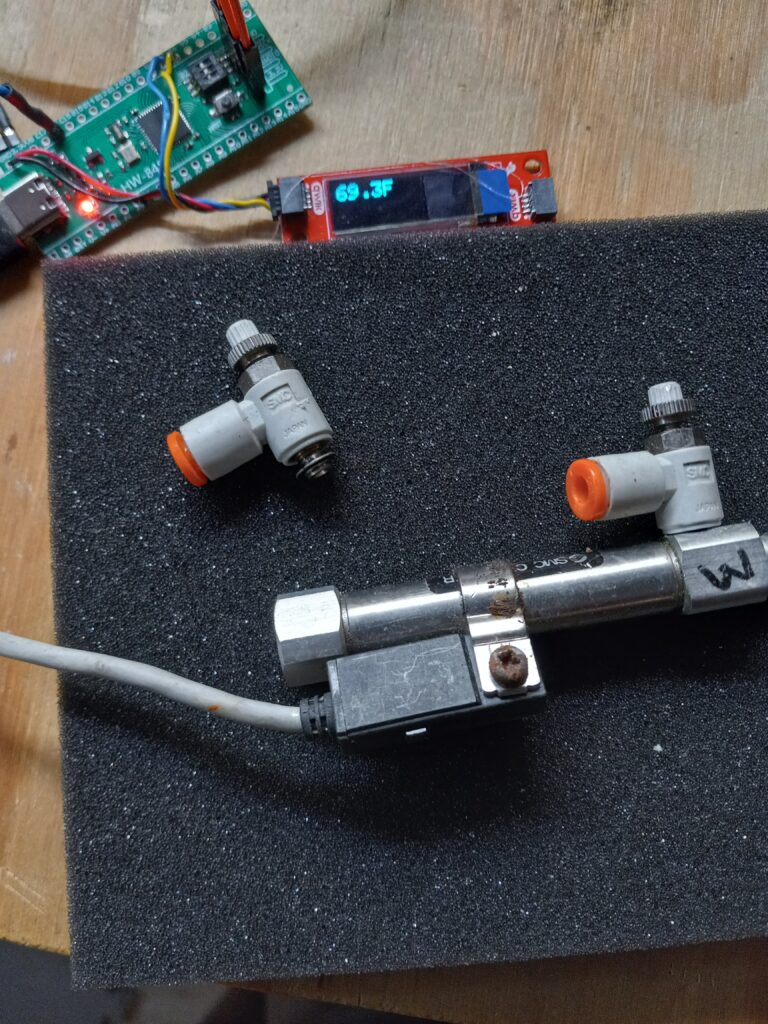
To make something move, we need a motor. Here’s a simple one to get started with.

OK, that’s actually two motors. They’re pretty cheap, so why just get one? I’m not going to post links since they’ll be outdated in seconds, but you can generally find these motors for under $5.00 each all over the web. Search “small gearmotor” and you’ll get tons of hits. These are DC gearmotors. “DC” refers to the fact that they run on Direct Current, such as what you get from a battery, as opposed to AC which is what comes from a wall outlet. A gearmotor is a type of motor that contains a gearbox. Normally, motors spin at pretty high speeds: thousands of rotations per minute(RPMs). With the embedded gearbox, we get a more useful rotation rate that’s generally between 15-100 RPM. Slower or faster speeds are available. The ones above has two output shafts that provide around 140 RPM.

OK. I’ll post one link: these guys will probably be selling them for a while

Now, any motor needs a power source. The sample ones above are small enough that they can be battery powered. Three AA’s will run them for quite a while.

An important feature of DC motors is that their speed depends on the voltage you give them. If you run these from four AA’s they will run faster than if you ran them from two. Normally, they take 4.5 Volts, which is what you would get from the three AA’s mentioned above. If you want them to run all the time, or just don’t want to be bothered replacing batteries, you can also run them from a 5V “wall wart” power supply.

Once we have the motor and a power source, it might be nice to have an easy way to control it. This is where a switch comes in. It completes or breaks the circuit between motor and power and so turns the motor on or off.

So let’s put this all together. You know what this needs? A drawing. Drawings that electrical engineers use to show connections are called schematic diagrams. Here’s what it looks like.

As you can see there are the three elements we talked about: the battery for power supply, a motor, and a switch to turn it on and off. Look at the symbol for a switch: it shows that the contacts (1&2) are not touching. This means that the circuit is incomplete and current will not flow. When the switch is closed by pushing the shiny arm on top, those contacts will touch and complete the circuit, causing current to flow through the motor and making it move.

Enough for now? Next time we’ll wire up actual components and see how that goes.


If you'd like to subscribe to this blog, please click here.

PCB Assembly Tips

I recently posted this on Reddit, but after feedback I figured it would be useful here also. Over the years, I’ve accumulated some knowledge about assembling Printed Circuit Boards (PCBs) and it never occurred to me that everyone hasn’t gone through the same school of hard knocks that I have. So here are a few tips when assembling boards.

Here are some of the things I learned over time:

  • Use a stencil if you aren’t already. OSH Stencils makes good quality Mylar stencils at pretty low cost. The time saving versus dispensing solder paste with a syringe is huge.
  • As much as possible, simplify access to the bare components. By this I mean, adjust for how you pick them up. I pick up ICs with a basic vacuum tool, so I keep them in the trays they came in. The resistors/capacitors I pick up with tweezers (my cheapo vacuum pickup doesn’t do so well with small parts), so those are in bulk containers. LEDs are in their tapes, with the polarity clearly marked. The little time-saving details add up.
  • Through-hole components: insert/solder them based on height. Place the lowest-height parts first, otherwise it’s too hard to hold them in place upside down. I use a piece of foam to hold them in place while I solder.
  • It helps to put down extra flux before you place an IC with very close pin spacing like a TQFP part. The flux will help it self-align during reflow and makes solder bridges less likely.
  • If you’re doing multiple boards, it’s faster to place the same part on all boards at once. i.e., making 10 boards: place U1 on all of them, then U2, then R1, R2, then R3, etc. The repetitive motion saves time because muscle memory sets in.
  • Make sure you have assembly costs built into your product before farming out the assembly. I know this sounds obvious, but it’s amazing how many people forget about details like this and end up losing money overall. A good rule of thumb is that your product should sell for 3-5x the Cost of Goods Sold (COGS), which includes assembly cost.


If you'd like to subscribe to this blog, please click here.
Start Raspberry pi program on boot

Here is an easy way to start a program for a Raspberry Pi with a Graphical User Interface automatically on boot up.

We’re assuming you are using a recent distro like Raspbian Buster. The autostart folder under ~/.config is where the file goes. The command file format to start your program is:

[Desktop Entry]
Type=Application
Name=HelloWorld
Exec=/usr/bin/python ~/hello.py

Save this file in the autostart folder and call it hello.desktop. This will start a simple “HelloWorld” type program (hello.py) written in Python with a Tkinter GUI framework. It’s probably as simple as it can get.

If you need to run Python under lighttpd, there’s a good tutorial over here.


If you'd like to subscribe to this blog, please click here.

Run .NET programs on Raspberry Pi

What was once unthinkable has now happened: you can run software written for Microsoft’s .NET framework on Linux. This means you can now write code in Visual Studio on a PC that can be executed on a pi running Linux.

The process is pretty simple. Let’s start by assuming you have Visual Studio (at least the 2017 version) and a current version of the .NET SDK on your host computer. You can download that from Microsoft here.

Open a new command shell and create a directory called blinky.

Go to the directory: cd blinky.

Type the command dotnet new console

This creates a Visual Studio project called blinky. Replace the Program.cs file with our sample code (TBD) to blink an LED.

Build the program for Linux with the command dotnet publish -r linux-arm

We now have an application package in the publish subdirectory that we can load onto a Raspberry Pi running Linux. Let’s get the pi setup to run .NET Core. We’re going to assume that it’s running Raspbian Debian 9 Jessie since that’s current as this is written.

sudo apt-get install curl libunwind8 gettext apt-transport-https

sudo apt-get update

After the .NET Core framework has been installed, copy the publish directory from your PC to the pi and execute the blinky.exe program to run it. Enjoy your blinking LED!

Here is the source code of the blinky Program.cs

using System;
using System.Threading;
using System.Device.Gpio;

namespace blinky
{
    // Blinks an LED on GPIO pin 16 on a Raspberry pi
    class Program
    {
        static void Main(string[] args)
        {
            Console.WriteLine("Hello World!");
            int pin = 16;
            GpioController controller = new GpioController();
            controller.OpenPin(pin, PinMode.Output);

            int lightTimeInMilliseconds = 1000;
            int dimTimeInMilliseconds = 200;

            while (true)
            {
                Console.WriteLine($"Light for {lightTimeInMilliseconds}ms");
                controller.Write(pin, PinValue.High);
                Thread.Sleep(lightTimeInMilliseconds);
                Console.WriteLine($"Dim for {dimTimeInMilliseconds}ms");
                controller.Write(pin, PinValue.Low);
                Thread.Sleep(dimTimeInMilliseconds);
            }
        }
    }
}


If you'd like to subscribe to this blog, please click here.

Your first Arduino program

So you’ve been hearing about this Arduino thing and you made the jump and downloaded the IDE since it’s a good first step and doesn’t cost anything. Now what?

Well, first of all, what’s an “IDE?” An IDE is an abbreviation for Integrated Development Environment. To write code you need a text editor and to program the Arduino device, you need a programmer. The “I” in Integrated means that the application contains both an editor and a programmer. The Arduino IDE is a very basic one but it gets the job done.

So, what’s a “sketch?” A sketch is the Arduino terminology for a computer program, which is the set of instructions you give a computer to tell it to do something. We also call this “code.” Why the Arduino inventors called a program a sketch I have no idea, but it seems to have stuck.

void setup()
{
}

The lines above are familiar to anyone who’s written an Arduino sketch. The basic outline of a sketch has two of these blocks called “functions.” A function is a short block of code that can be called, or told to execute from anywhere in your program. The other basic function is “loop” and we’ll get to it later. For now, the important thing to know is that setup is called when the program starts and loop is called repeatedly, over and over.

Since setup is called at the beginning, it’s the place where we put statements that need to be executed as soon as the Arduino starts up. e.g., we need to tell it which pins we want to use as inputs and outputs, what special configurations they need, and so on. Here’s a basic program that makes pins 2&3 outputs and blinks them five times.

void setup(void)
{
    // Set pins 2 and 3 as outputs
    pinMode(2, OUTPUT);
    pinMode(3, OUTPUT);

    // Declare a variable for counting
    int i = 0;
    // Turn pins 2 & 3 off 5 times
    // using a for... loop
    for( i = 0; i < 5; i++ )
    {
        // Turn OFF pin 2
        digitalWrite(2, LOW);
        // Turn ON pin 3
        digitalWrite(3, HIGH);
        // Pause for 1000 milliseconds (1 second)
        delay(1000);

        // Turn ON pin 2
        digitalWrite(2, HIGH);
        // Turn OFF pin 3
        digitalWrite(3, LOW);
        // Pause for 1000 milliseconds (1 second)
        delay(1000);
    }
    // Turn OFF pin 2
    digitalWrite(2, LOW);
}

The short block of code above shows something important that’s often ignored: you can do real work in the setup() function. In fact, for some very short programs that just need to do a task and stop, it’s a good way to write your code.


If you'd like to subscribe to this blog, please click here.

First Experiments with MPU-6050

OK, so this wasn’t the first experiment but it was the first one I recorded. I’ve wanted to build a stable platform for years, but finally had a reason to do so. The design uses the common MPU-6050 in DMP mode so its internal CPU handles all sensor fusion. I used an excellent MPU6050 library to handle all the interfacing and a small gear motor to move the platform. The whole thing now runs on a basic proportional control and it’s amazingly responsive.Here’s a quick look: https://www.youtube.com/watch?v=Ezwf3kFpk7c


If you'd like to subscribe to this blog, please click here.